As the expression says: All good things come in threes! So after sharing the Remote Desktop Manager Startup Checklist for Teams and the Remote Desktop Manager Startup Checklist for Individual Users Enterprise Edition, I’m happy to round out the trilogy with the third and final installment: the Remote Desktop Manager Startup Checklist for the Free Edition.
| Checklist for Teams | |
| Step 1 – Create your Devolutions Cloud Account | |
| Step 2 – Register your free license | |
| Step 3 – Choose your data source | |
| Step 4 – Setup Devolutions Online Backup | |
| Step 5 – Create your Default Settings | |
| Step 6 – Import Your Data | |
Step 1 - Create Your Devolutions Cloud Account
Create a Devolutions Cloud Account to get your serial number.
- Go to https://cloud.devolutions.net.
- Click on Register next to Create Free Account.
- Enter all the required information and click on Create account.
Step 2 – Register Your Free License
You have 30 days to try RDM Free out and explore its features and functions without registering any information. Each time you launch the application you’ll see a dialog box indicating the number of days left in your free, no information requested, period.
Once your trial period is over, you can either continue using the Free edition (don’t worry it really is free!), or you can request a trial for our Enterprise edition.
To continue using the Free edition:
- Log in to your Devolutions Cloud account.
- In your Customer Portal, go to My Serials.
- Copy your Remote Desktop Manager Free license in the menu Help – Register Version.
Step 3 – Choose Your Data Source
Choose your data source type. Use this table to help you choose the right data source to meet your requirements:
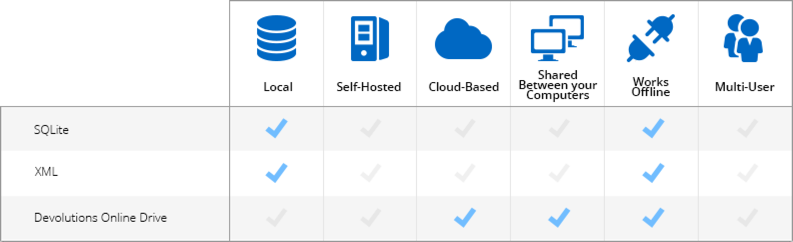
Note: we always recommend setting a password or a Master Key on data sources that support it.
Step 4 – Setup Devolutions Online Backup
Devolutions Online Backup allows you to backup information from the following data sources: Devolutions Online Drive, SQLite and XML. We strongly recommend that you backup your data “just in case”. Here’s what to do:
- Log in to your Devolutions Cloud account.
- Go to File – Backup and sign in with your Devolutions Cloud account.
- Go to View Subscription.
- Enter your Backup name and click on Create to automatically create your online backup.
The backup is executed 30 seconds after any modification to the data source content. If you’re using any other type of data source(s), please follow this link for further guidance.
Step 5 - Create Your Default Settings
To create your default settings template, follow File – Templates – Default Settings and select the default settings template you wish to create. Please note that you need to perform this for each type of template.
You can also create, edit or reset your default settings whenever a new entry is created. Each entry type is supported and can have a default template defined.
Step 6 - Import from other applications
The last step is to import your data into RDM. Go to File – Import to import multiple entry types from multiple sources (.rdm, .pvm, .xml). You can also easily import sessions, logins and contacts from other software into Remote Desktop Manager Free.
As always, please let us know your thoughts by using the comment feature of the blog. You can also visit our forums to get help and submit feature requests, you can find them here.